
The anatomy of a high-converting portfolio site (with examples)
If you've read about building a compelling portfolio with strong case studies, you already know that content alone doesn't close clients. A project page full of sharp, metrics-driven writing can still underperform if visitors don't know where to look, what to click, or why they should stay past the first scroll. That's where structure steps in — not as a design preference, but as a conversion tool.
This piece is about the physical architecture of a portfolio site: how its sections are arranged, how they guide attention, and where most sites quietly lose clients they could have won.
Jump to a Section
The first 600 pixels
The hero section is the one part of your site that every visitor sees. Everything else is conditional on whether this block works.
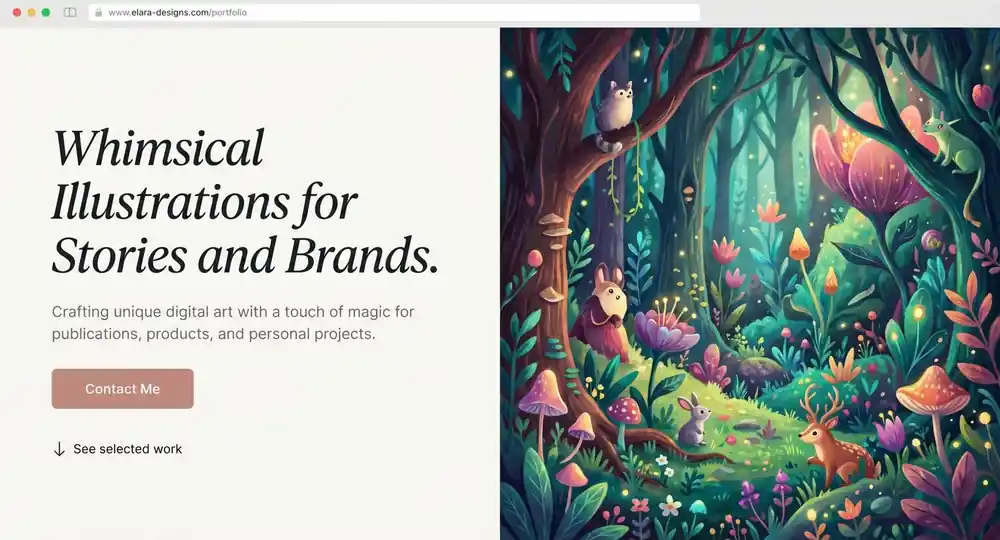
Two hero layouts dominate portfolio design, and they serve different signals:
- centered headline (large type, no competing visual) — projects authority; works well for solo practitioners whose personal brand is the product;
- left-aligned layout with an image or work sample on the right — creates immediate visual proof; the eye moves naturally between the claim and the evidence; stronger for designers and studios where the work speaks louder than the name.
The more important question is what happens just below the headline. Most portfolio heroes have a headline, a subheading, and a single CTA button — and stop there. Adding one small element just below that button changes the dynamic: a short service list, a line like "Response within 24 hours," or a downward chevron with "See selected work." It signals to visitors that there's more below without asking them to commit to scrolling blind.
A quick test before any redesign: cover the logo and read only what's left. Does the remaining content answer "who for" and "what result" within two seconds? If the answer requires reading carefully, the block needs work. Among portfolio website examples that convert at above-average rates, this two-second test almost always passes.
The project grid
The grid of project thumbnails is where most portfolio sites make their biggest structural mistake — and it's not about color or typography. It's about hierarchy.
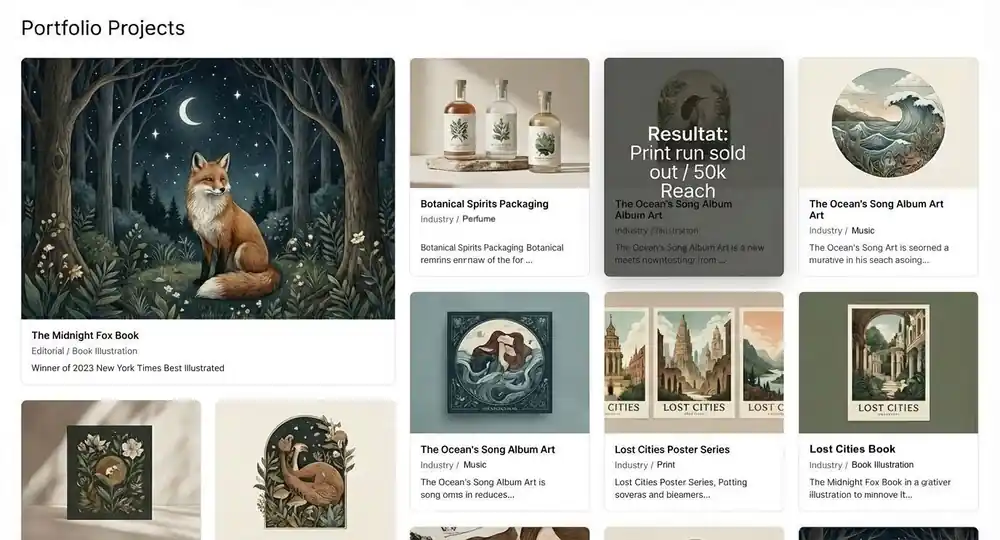
When every card is the same size, the grid communicates that every project is equally important. A grid with one or two wide "flagship" cards — double the column width of the surrounding tiles — does something else: it tells visitors which work to prioritize. Those are the cases solved most completely, where results were measurable and the challenge was real.
What a strong project card shows
Every card on a well-structured portfolio site design grid should carry:
- a self-explanatory project title (no internal code names or client-side jargon);
- an industry or service tag ("E-commerce / UX redesign") so visitors can self-select relevance at a glance;
- a result snippet on the card or on hover — one line, one number ("Conversion rate +41%") — gives visitors a reason to click before they've committed to opening the case study;
- a thumbnail that reads clearly at small sizes, without relying on text overlays to explain what the project is.
For example:
Title: "Checkout redesign for a furniture retailer."
Tag: "E-commerce / UX."
Result snippet: "Cart abandonment down 34%.
A potential client in retail knows in three seconds whether to click.
A grid arrangement worth testing
Lead with your most complex case, follow with your most recent, and let the rest fill in by industry. This creates a reading path:
- complexity first (I can handle difficult problems),
- recency second (I'm actively working),
- relevance third (find yourself in my client list).
Visitors don't browse portfolios the way they browse social feeds. They're looking for a specific signal. Help them find it faster.
Among best portfolio sites in design-adjacent fields, grids with explicit visual hierarchy and hover-reveal results pull meaningfully higher click-through than uniform-tile layouts. The grid also shouldn't double as an archive. Ten cards with clear hierarchy beat thirty of equal weight every time.
Inside a project page
A case study page has a pacing problem. Clients who arrive there are already interested — they clicked through, which means the grid did its job. The risk now is losing them to scroll fatigue before they reach the result.
Rhythm and scannability
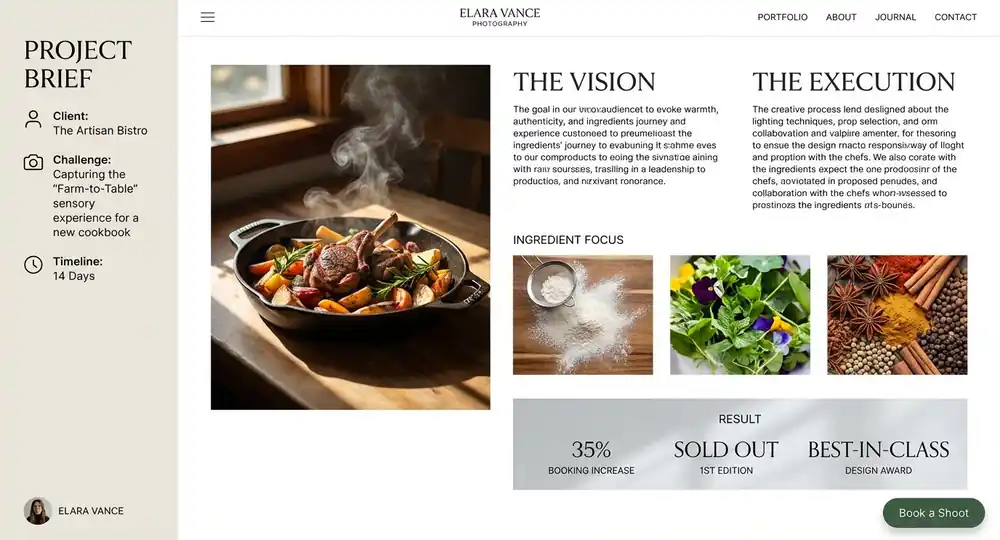
The structural solution is alternating content types rather than stacking sections of the same format: a full-bleed image, then a two-column text block, then a constrained gallery, then a stat panel. The eye resets between format changes, which makes long pages feel shorter.
Two elements significantly improve scannability:
- A sidebar or top bar with the project brief in compressed form — client name, challenge in one sentence, timeline.
- A stat block for results. The metrics from a well-structured case study are far more persuasive as a formatted data visualization panel — large numeral, short label, minimal color — than as a sentence buried in the final paragraph. Formatted numbers register immediately; the same information in prose requires reading.
The footer as a closing argument
Most portfolio footers contain a copyright line, a few social icons, and an email address. That's a missed conversion point. By the time a visitor reaches the bottom of your site, they've seen your work, read your process, and formed an opinion. The footer catches them at the moment of decision.
A high-performing portfolio footer does three things:
- Repeats the primary CTA, worded differently from the hero — not "See my work" but "Ready to start a project?" or "Let's figure out if we're a fit." Visitors who scroll all the way down are self-selected. A second CTA here isn't redundant; it's timely.
- Carries lightweight trust signals: a brief availability note ("Taking on projects for Q3"), a response-time commitment, or a short line about how you work with new clients.
- Integrates the contact form visually, so it feels like a natural conclusion to the page rather than a plugin dropped in as an afterthought.
On portfolio website tips focused on agency-style sites, this kind of footer content consistently separates sites that generate inquiries from those that produce traffic with low contact rates.
Field count in the contact form matters directly: name, email, and a single open message field is the minimum for a warm lead. Adding a budget range or project type selector makes sense only if you actually act on that data during qualification. Every additional required field reduces completion rate — that's a documented pattern across service businesses of every kind, not a portfolio site tips cliché.
Mobile anatomy: where the thumb zone decides
Responsive design in the context of portfolio sites is usually discussed as a rendering problem — does the layout break at smaller widths? The actual question is whether the mobile version is built around how people physically hold a phone.
The thumb zone in practice
The arc of screen a right-handed user can reach without shifting grip covers roughly the bottom two-thirds of a standard smartphone. The top third — where desktop sites typically position navigation and primary CTAs — is awkward to reach one-handed.
Project grids should reflow to a single column ― so the visual hierarchy that wide flagship tiles created on desktop disappears. Compensate with order: put the strongest case first, full stop.
Hover states become tap states. Any interaction that relies on hover reveal — that one-line result snippet — needs an always-visible treatment on small screens: a subtitle on the card itself, rather than content that only appears on interaction.
Closer handles mobile responsiveness and performance optimization by default, which removes the technical layer from these decisions.

What to put on the homepage
The homepage is often treated as a lighter version of the portfolio section — a grid with a hero above and a footer below. That's functional, but it conflates two jobs: presence (here's what I do, here's who I serve) and routing (here's where to go depending on what you need).
A homepage that serves both:
- a hero that answers "who for and what result" above the fold;
- a condensed selected work section showing three to five cases — not a full grid;
- a brief process strip (two to three lines) that signals collaboration style, not just deliverables;
- a clear path to either the full portfolio or direct contact.
For example:
The hero reads: "I help DTC brands look like they mean it."
Below it: three selected cases — packaging, identity, web.
A two-line process note follows: "I work in focused two-week sprints, one client at a time." The page closes with a direct link to book a call.
What to include on your homepage is also a question of what to leave out. Most homepages don't need a news section unless content is updated regularly, a full logo wall unless the names are recognizable to the target client, or any section that exists primarily because it seemed like something a portfolio site should have. Visitors on a homepage are making a quick judgment. Sections that don't answer a question they're actively asking add length without value.
How to build your portfolio on Closer
Everything described in this article — hero hierarchy, project grid with visual weight, result-driven cards, CTAs, mobile-first layout — takes shape in Closer without writing a line of code or spending hours hunting for images.
Start by answering a few questions about your work: your field, the type of projects you take on, the clients you target. The AI assistant generates a complete site from those answers — unique design, professional copy and headlines, logo, and images. That’s your homepage. If anything doesn't fit, regenerate it as needed, or click directly on any element and edit it manually in the editor.
Once the initial site is ready, the section library is where the architecture described here gets built out properly. Add new pages, hit the "+" button to add a new section and browse by category. For the hero, the Header category offers multiple layout variations — centered or split, with or without a background visual.
For the project grid, look in the Photos category: it includes both uniform gallery layouts and mixed-size arrangements where one card takes up significantly more space than the others — exactly the kind of visual hierarchy that steers visitors toward your flagship cases first.
Call to Action sections handle the mid-page and footer CTAs; the Contact and Footer categories cover the closing block, with a form you configure field by field in the admin panel. For case study pages, Article and Photos sections alternate to create the content rhythm — image, text column, gallery, stat block — that keeps long pages scannable.
Within any section, content blocks are added the same way: heat the button in your panel and drop in a new text, image, or layout element. Edit text and images by clicking directly on them, or open the AI assistant to write a headline, work out a paragraph, or generate a new image without leaving the editor. The AI assistant also works at the section level — describe what you need ("a short process overview with three steps") and it builds the section for you.
SEO settings are also set up by the AI and configurable directly in the platform, relevant for anyone relying on organic search alongside the portfolio itself (see how to optimize your no-code website for Google ). The entire site is fully responsive on mobile by default, so the thumb-zone logic described earlier is handled structurally — your job is to choose the right layout, not to debug how it renders on a phone.
Ready to build? Launch your portfolio on Closer — free, no technical skills needed, live in minutes.
Summary
A portfolio site converts when its architecture does the same work as its content — guiding attention, reducing friction, and making the next step obvious at every point in the scroll.
The decisions that matter most are the small structural ones: whether the hero answers the right question in two seconds, whether the project grid creates hierarchy or visual noise, whether the case study page maintains pace, and whether the footer treats the moment of decision as an opportunity. On mobile, it comes down to whether the CTA is where a thumb can reach it.
This approach works best for freelancers and small agencies ready to move past "here is my work" and into "here is why my work is the answer to your specific problem." It's less suited to practitioners still in the early stage of building a case study library — the architecture described here amplifies strong content; it can't replace it.
A practical first step: audit your current site against three questions. Does the hero pass the two-second test? Does the project grid have a visible hierarchy? Does every page have a CTA within thumb reach on mobile? If any of the three fail, that's where to start.
Closer builds the structural foundation for you — AI-generated layout, content, and design that you can regenerate or adjust until it's right. If you're starting a portfolio from scratch or rebuilding one that's stopped producing leads, launch it on Closer and have a professional site live the same day.


